How to post your stream clips to Discord automatically
Connect your Discord server to StormClip and the best clips from each stream land in your clips channel by themselves. Anyone in the server with a linked StormClip account can clip a VOD with /clip.

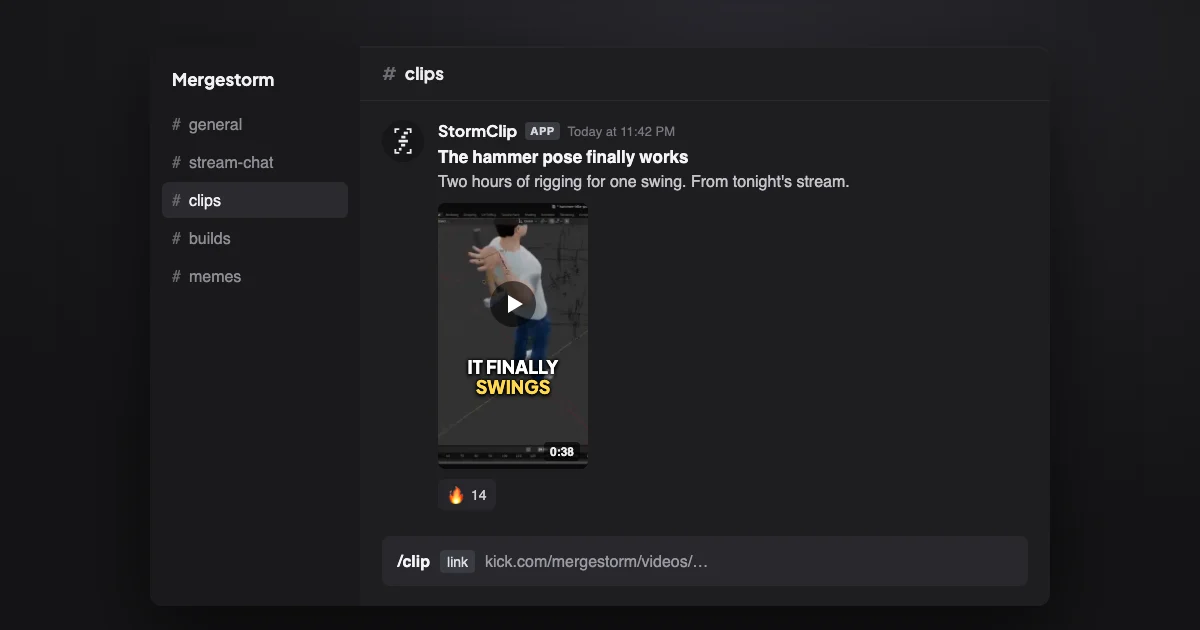
The people most likely to watch last night's highlight are already in your Discord server. They don't need an algorithm to find you. Yet in most servers the clips channel depends on one person remembering to download a clip, find it again and upload it. When that person is busy, the channel goes quiet.
StormClip can fill that channel for you. It can also take clip requests from inside Discord, so nobody has to open another site to turn a VOD into shorts.
What changes when Discord is connected
Clips go out, and video comes in.
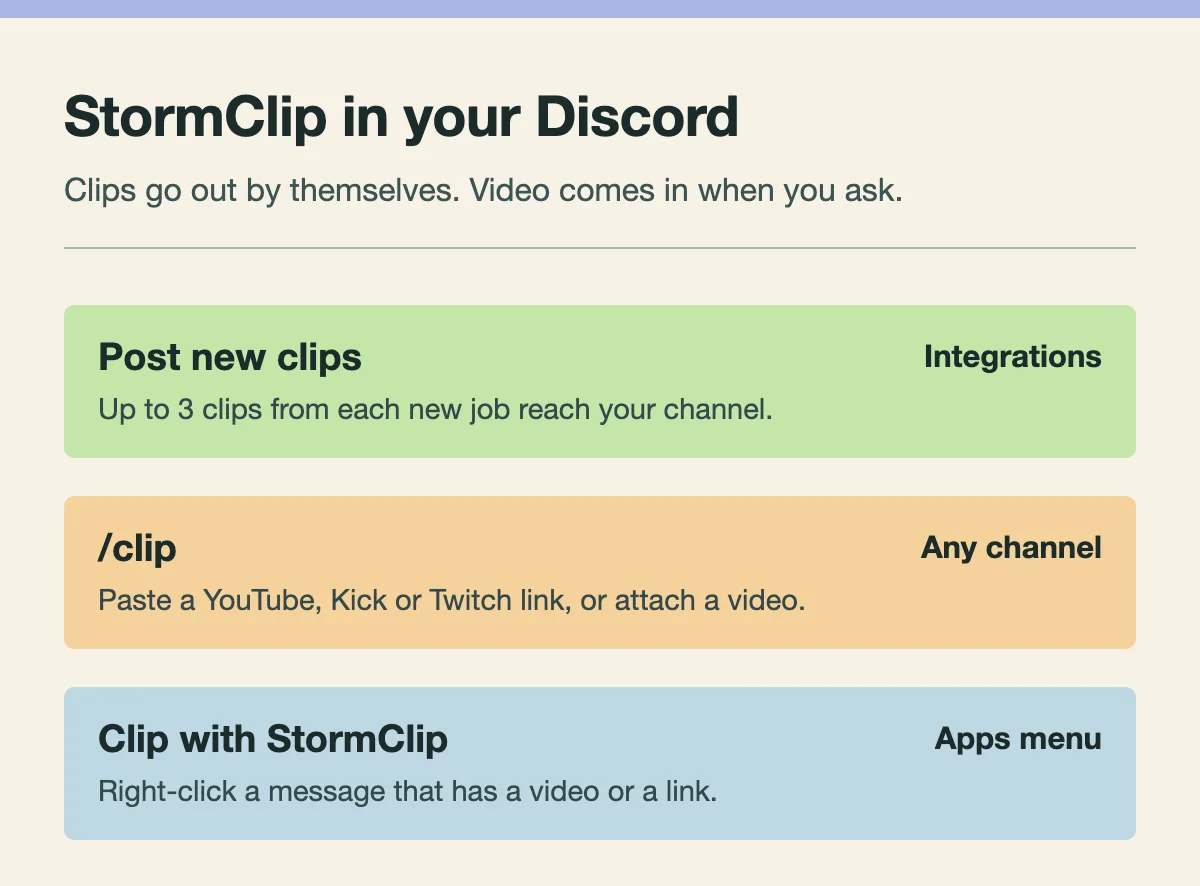
- Clips go out. When StormClip finishes a new job, up to three of its clips appear in the channel you picked. Each post has a title, a caption and the video itself.
- Video comes in. Type
/clipwith a YouTube, Kick or Twitch link, or attach a recording. Or right-click a message that already has one. StormClip makes the shorts.
Connect your server
- In StormClip, open Integrations and click Connect on the Discord row. Discord asks which server to add the StormClip bot to. It lists only servers you manage.
- Approve the four permissions the bot asks for: View Channel, Send Messages, Embed Links and Attach Files. That is all it gets. It can't moderate, and it never pings
@everyone, a role or a person, whatever a caption says. - Pick the channel. StormClip shows only the text and announcement channels where the bot can actually post. If only one fits, it is picked for you.
Jobs you start after connecting get a Discord version of every clip, with its own title and caption, next to the other platforms. From any clip, Post sends it to the channel now and Schedule sends it later.
Turn on Post new clips to Discord
Under the Discord row in Integrations, set Post new clips to Discord to On. From then on, when a new job finishes, up to three of its clips go to your channel without a review, within your daily posting limit.
A few rules keep the channel clean:
- If you approved clips in a job, only those go. Clips you rejected never go.
- Each clip goes once, even if you untick "posted" later.
- A clip already on your schedule goes out at its time instead.
- Jobs older than three days are left alone, so a backlog never floods the channel.
Say you end a three-hour game dev stream at midnight. StormClip finds the moment the hammer pose finally swings, the bug where the character walks through a wall, and the minute chat named the new boss. By the time you wake up, those three are in your clips channel, playing in Discord, and your community has already reacted.
Prefer to check every clip first? Leave the switch off. Clips then reach the channel only when you post or schedule them.
The video plays inside Discord
Posts carry the video file, so people press play in the channel without leaving Discord, and the clip stays in your server for good. StormClip makes a separate 720 by 1280 version for Discord, sized to fit the 20 MB upload limit Discord gives apps, with the sound at full quality.
A clip longer than about two and a half minutes can't fit that limit at a watchable quality, so it goes as a link to the file instead. Discord clips work best well under a minute anyway.
Clip from inside Discord
You can start a job without opening StormClip, in any server where the StormClip bot is:
/clip. Paste a YouTube, Kick or Twitch link in thelinkoption, or attach a recording to thefileoption. A Kick or Twitch clip link becomes one short of that whole clip.- Clip with StormClip. Right-click a message (long-press on a phone), open Apps, and choose Clip with StormClip. It takes the video attached to the message, or else its YouTube, Kick or Twitch link.
StormClip answers right away with a button that opens the job. Only you see that answer, so the channel doesn't fill with bot messages.
The job runs on the StormClip account linked to whoever typed the command, with that account's credits. Anyone without a linked account gets a button to connect one. When you clip in the server you connected, the job lands in that brand, so with the switch on its clips post back to the channel like any other new job.
A handy loop: a viewer posts a Kick clip of a great moment in your stream chat channel. Right-click it, choose Clip with StormClip, and a captioned vertical short of it is in your dashboard a few minutes later. If you stream on Kick, the Kick guide covers which link to use when.
Sign in with Discord
You can also sign in to StormClip with Discord. If you already sign in with Kick, connect Discord under Account and both open the same account, with the same clips, credits and Kick channel. Changing your Discord username or display name changes nothing.
What it doesn't do
StormClip can't clip a Discord Go Live. Discord gives apps no way to watch one. Send the VOD from Kick, Twitch or YouTube instead, or attach the recording to /clip.
The bot also doesn't read your server. It only sees what someone hands it: a /clip command or the one message they picked. For a full posting plan across the other platforms, read one stream, nine platforms.