How to clip a Kick stream while you are live
Sign in with Kick and StormClip clips every stream you start, while you are still live. Kick streams and VODs cost fewer credits than a YouTube link.


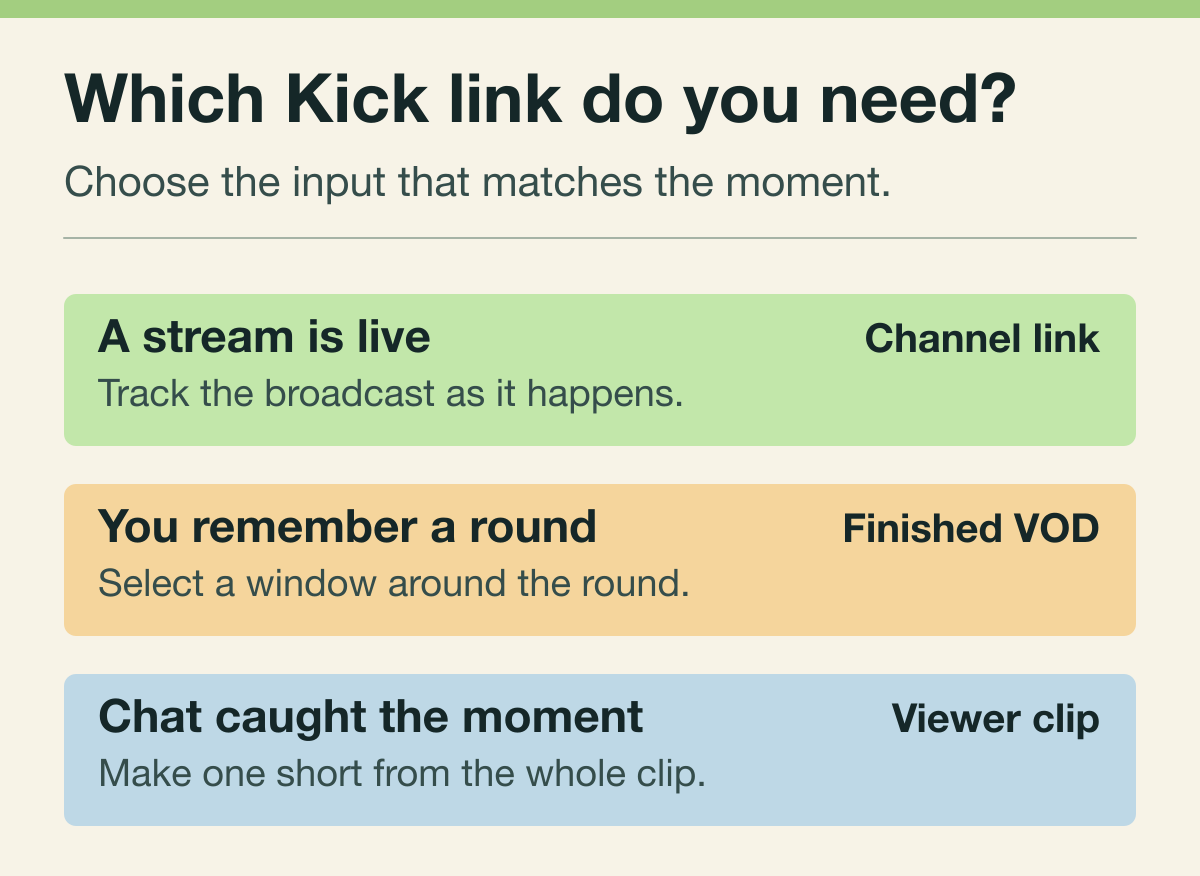
You can start with a live channel, a finished Kick VOD, or a short your chat already clipped. Choose the source based on what you want to publish. A viewer who caught the exact moment has already done the searching for you. A full broadcast is more useful when you want several different stories.
The workflow
- Sign in with Kick. Press "Continue with Kick" on the sign-in screen. StormClip asks Kick for your name, your email and your channel, and for a notice when you go live. The first time, you also confirm your email with a code. Signing in connects your channel.
- Go live. "Clip my streams automatically" in Account is on from the start, so when you go live on Kick, StormClip starts recording by itself. The clips show up in your dashboard as they are made, and when the stream ends you get one email with how many clips it made. Turn that email off in Account with "Email when a stream's clips are ready". Turn automatic clipping off in Account if you would rather choose each stream.
- Or start it yourself. In New job, paste kick.com/yourname and press "Track live stream". If you are not live yet, StormClip keeps checking and the button opens by itself when the stream starts.
- Stream as usual. While you are live StormClip clips the best moments every 10 minutes. Each clip shows up as soon as it is ready, so you can post the first one before the stream ends. It stops by itself when the stream ends or your credits run out.
- Review the picks. Every pick is a captioned vertical short. When your facecam has a clear frame around it, StormClip usually finds it and stacks it over the screen. Approve the ones you like, trim a start or an end, or reject it.
- Post. Each approved clip has its own file and its own title, caption and hashtags for each of nine platforms. StormClip posts to YouTube Shorts and Bluesky for you and hands you a ready kit for the rest.
A stream that already ended
Paste the VOD link from your channel's Videos tab. StormClip reads the whole VOD, or only the part between a start and an end time you give it, and only that part is charged. A VOD of a stream that is still live is taken once the stream has ended.
A clip made on Kick
Paste the link of a clip made with Kick's clip button, by you or by a viewer. StormClip makes one short from it: the whole clip, turned vertical, captioned word by word, with a title, caption and hashtags for each platform. Nothing is picked or left out, since the clip is already the moment. It is billed at the Kick rate and never under 1 credit.
Make the first post an invitation
Suppose chat persuaded you to switch builds midway through a run. Start with the viewer’s suggestion, show what changed, and keep your reaction. Put your Kick channel name and the time of the rematch in the post. On your next broadcast, ask whether anyone saw the clip. That gives you a way to connect a post with a real visit.
What a Kick stream costs
Kick streams and VODs are 50% off: 1 credit is 2 minutes. A 4 hour Kick VOD is 120 credits, however many clips come out of it. The same 4 hours from a YouTube link is 240. A stream tracked while it is live costs more than its VOD: it is clipped in 10 minute parts, each billed in whole credits and each starting 30 seconds before the last one ended, so the same 4 hours live come to 143 credits.
Monthly is $29 per month for 1,800 credits. If you are live every day, Daily is $79 per month for 6,000 credits. If you stream less often, a pack is $9 for 360 credits and does not expire. The Free plan ($0, no card needed) lets you try it on a stream first.
What it does not do
- It does not post to Kick or make Kick clips. Kick's API has no way to do either. The shorts are for the short video apps, where people who have never seen your channel find it.
- It does not watch the game. StormClip picks from what is said, so it will not find a kill or a win by itself unless you were talking through it, and it transcribes English only. For gameplay with little talking, see StormClip vs Eklipse.
Your stream, your clips
Clip your own streams, or streams you have the creator's permission to clip. The clips are yours to post.
StormClip is not affiliated with Kick. Kick is a trademark of its owner.
Choose between a live channel, a VOD window and a viewer clip
Suppose a viewer types “clip that” just after your build wins a round. Ask what they remember. If they already made a Kick clip and it includes the setup and the win, paste that clip link. You get one moment to review, which is a good fit when you want to respond while the conversation is still moving. Check the start carefully. A clip that opens on the score screen cannot explain why everybody was surprised.
If the viewer remembers the round but missed the clip button, use the finished VOD. Start the window before you chose the build and end it after the reaction. Preview the cut with chat hidden. If nobody can tell what was risky about the choice, keep the spoken prediction from the previous round or supply that context in your post. Saving one clear sequence can be more useful than processing the whole broadcast again.
For a recurring show, link your own live channel so future streams enter the workflow as they happen. Agree with a moderator on a simple note such as “blue build, second round.” Put that note and the stream time in a shared list. It gives you a way to find the exact moment even if a viewer never creates a clip.
Turn the finished short into a handoff
Before publishing, write two lines: what the viewer just saw and what they can do next. For the build example, “That was chat's pick. Vote for next Thursday's loadout on my Kick channel” connects the post with an activity. Add the time zone. If you link to the channel after the broadcast, check what an offline visitor actually sees there. The next scheduled stream or a recent VOD gives the clip somewhere to lead.
Browse all guides →